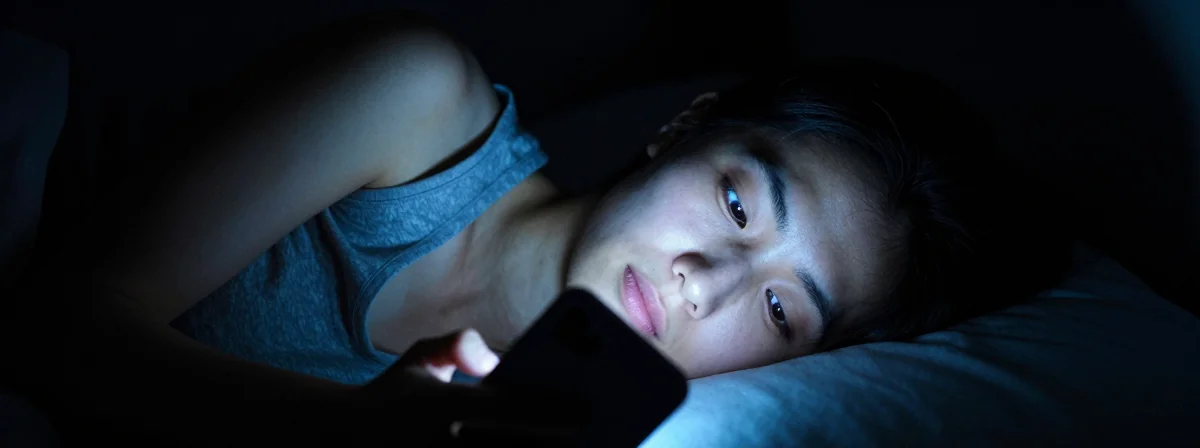
You know the feeling. You’re laying in bed, lights out, comfortable, and you decide to check one last notification. You tap the screen and BAM—instant flashbang. It feels like someone shined a flashlight directly into your soul. You squint, fumble for the brightness slider, and drag it down, but it’s still not enough. It’s still glowing like a radioactive slab.
You might think your phone is broken or just too powerful for its own good. It’s not. You’re just using the wrong tools. The default brightness slider is a blunt instrument. It dims the backlight, but it doesn’t touch the intensity of the whites on your screen. That’s why your eyes still hurt at night.
If you value your vision and your sleep, you need to stop messing with the slider and start using “Reduce White Point.” It changes everything.
Your Brightness Slider is Lying to You
Here’s the hard truth: even at zero brightness, modern OLED screens are aggressively bright. The auto-brightness feature is often aggressive, too, ramping up the lumens the second it detects a lamp or a streetlight outside. You try to set it to a comfortable 33%, and the phone fights you back.
When you drag that slider, you’re lowering the output of the pixels. But pure white pixels are designed to pop. They are designed to be visible in direct sunlight. You do not need direct sunlight visibility at 2:00 AM in a dark room. You need the whites to be dull, gray, and manageable. That is exactly what “Reduce White Point” does. It lowers the intensity of white and bright colors without crushing the darks entirely.
The HDR Problem Nobody Talks About
It’s not just your home screen, either. Apps like YouTube and Instagram are blasting your retinas with HDR content. You’re watching a video that suddenly spikes in brightness, and there is no setting in the app to stop it. One minute you’re fine, the next you’re blinking away spots.
“Reduce White Point” tames this beast. It keeps the rich colors you want but stops the whites from acting as a weapon. Alternatively, you can turn on Low Power Mode, which often disables HDR output and falls back to standard dynamic range. It’s a trade-off, but your eyes will thank you.
Set It and Forget It
Don’t waste time digging through settings every night. You won’t do it. It needs to be automatic.
Go into your Accessibility settings and set up a shortcut. Assign “Reduce White Point” to a triple-click of your power button. Boom—one click and your phone is instantly readable in the dark without blinding you. Better yet, use the Shortcuts app to automate it. Have it automatically trigger at 10 PM or 11 PM. Combine it with a color filter to turn the screen grayscale. You get a dark, non-intrusive interface that tells your brain it’s time to sleep.
It’s Not Just for Night Owls
If you think this is just for bedtime browsing, you’re missing the point. This is about managing sensitivity. If you get migraines or headaches, screen brightness is a trigger. If you’ve had head injuries—concussions, falls—you know how brutal a bright screen can be.
This setting is a shield. It makes the device usable when your brain is screaming for darkness. Even if you have perfect vision, using this saves battery life. Less intensity on the whites means less power draw. It’s a win-win.
Take Control of Your Tech
Stop letting your phone dictate how you feel. You own the device; it doesn’t own you. If you’re sitting in a dark room squinting at a torch, you’re doing it wrong.
Turn down the white point. Set up the automation. Protect your eyes. It’s a two-second setting that saves you hours of pain.