
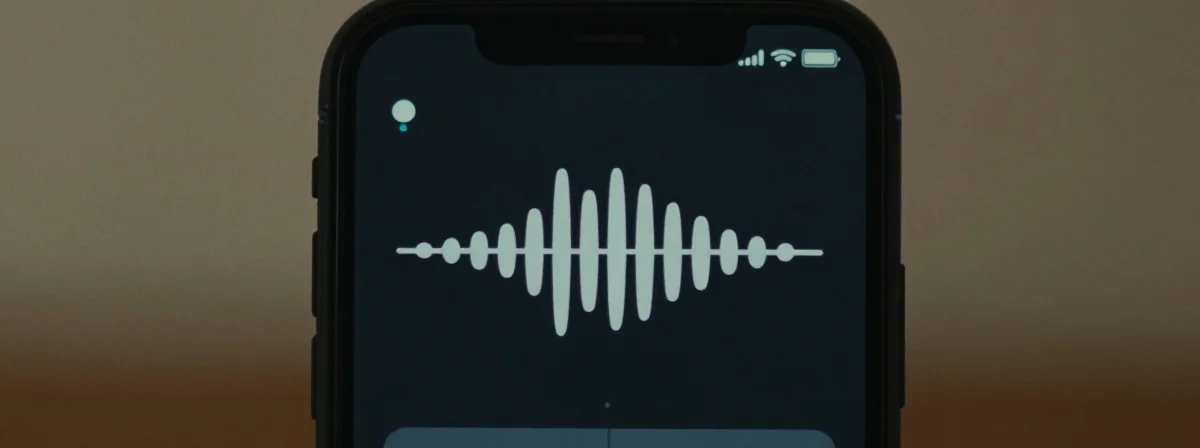
Ever wake up to the gentle hum of your phone alarm—so quiet you could barely hear it? You’re not alone. This frustrating phenomenon isn’t just a random glitch; it’s a symptom of deeper issues hiding in plain sight. Your phone’s alarm isn’t just a simple sound; it’s a complex system that can be derailed by everything from software quirks to accidental settings changes. And when it fails, it’s not just an annoyance—it’s a productivity killer.
Imagine your alarm as the conductor of a symphony. When every instrument plays at the right volume, you wake up refreshed. But when the volume drops to a whisper, it’s like the conductor fell asleep at the podium. The problem isn’t always obvious, and the solutions aren’t always intuitive. That’s why we’re diving into the seven hidden reasons your phone alarm might be failing you—and how to fix them before your next early-morning commitment.
The truth is, your smartphone’s alarm system is more fragile than you think. From hidden accessibility settings to background apps sapping power, the reasons for a quiet alarm are as surprising as they are fixable. Let’s decode this mystery together.
Why Did My Alarm Suddenly Turn into a Whisper?
The first clue is often the most overlooked: your phone’s volume settings aren’t as straightforward as they seem. Unlike a traditional alarm clock with a single volume knob, your smartphone has multiple layers of sound control. The “ringer volume” you adjust with the side buttons isn’t the same as the “media volume” you use for videos or the “alarm volume” that wakes you up.
Think of it like a layered cake. The bottom layer is your system volume, the middle layer is your media volume, and the top layer is your alarm volume. If any of these layers gets accidentally adjusted—or if a background app changes them without your knowledge—you’re left with an alarm that sounds like it’s coming from the next room.
A surprising example? Many users report their alarms suddenly quieting after using headphones or Bluetooth speakers. When you disconnect, the phone sometimes forgets to reset the volume levels, leaving your alarm at a fraction of its normal intensity. It’s like leaving a car in neutral and wondering why it won’t drive forward.
The Accessibility Settings No One Told You About
Deep within your phone’s settings lies a trove of accessibility features designed to help those with hearing impairments. But these same features can accidentally affect your alarm volume if they’re turned on without your full awareness.
Take the “Hearing Aid Compatibility” setting, for instance. While it’s meant to optimize sound for hearing devices, it can sometimes reduce the maximum volume of your phone’s speakers— including your alarm. Similarly, “Sound Recognition” features that identify environmental sounds might lower your alarm volume to avoid startling you.
The irony? These features are meant to help, but they can backfire when you’re not expecting them. It’s like putting on noise-canceling headphones to focus, only to realize you can’t hear your own alarm. The fix is simple but not obvious: navigate to Settings > Accessibility and review any hearing-related options. If they’re not essential for you, consider turning them off to ensure your alarm always plays at full blast.
Background Apps Are Siphoning Your Alarm’s Energy
Your phone’s alarm relies on a delicate balance of power and processing. But when background apps are running amok, they can drain the resources needed to make your alarm loud and clear.
A common culprit? Fitness trackers or sleep monitoring apps. These apps often run silently in the background, tracking your movements or heart rate. In doing so, they can temporarily lower your phone’s performance to conserve battery—a side effect that sometimes includes reducing the volume of non-critical sounds like alarms.
It’s like having a party where every guest is talking at once. Your alarm is just one voice in the crowd, and if the system prioritizes other tasks, it might not get the attention it needs to wake you up. The solution? Close unnecessary apps before bed or adjust their permissions to prevent them from running in the background. Your alarm will thank you.
Software Updates That Quietly Changed Everything
Ever notice how a new phone update can bring unexpected changes? Sometimes, these updates include adjustments to sound settings that aren’t immediately obvious.
A recent case study showed that after a major iOS update, thousands of users reported their alarms suddenly playing at lower volumes. The reason? The update introduced new default settings for “Intelligent Volume,” a feature designed to adjust sound based on your environment. While helpful in some cases, it could misinterpret your bedroom as a quiet space and lower your alarm accordingly.
The lesson here is to check for post-update adjustments. If your alarm volume changes after an update, revisit your sound settings and look for any new options related to volume or sound optimization. It’s like recalibrating your GPS after a map update—small adjustments can make all the difference.
The Silent Threat of Do Not Disturb Mode
Do Not Disturb is a double-edged sword. While it’s perfect for silencing notifications during meetings or movie nights, it can also accidentally suppress your alarm if not configured carefully.
Many users report waking up late after unknowingly leaving Do Not Disturb on overnight. Even worse, some phones have “Scheduled Do Not Disturb” features that automatically activate at certain times—potentially including your sleep hours.
The fix is straightforward but requires vigilance: double-check your Do Not Disturb settings to ensure alarms are always exempt. On most phones, this means going to Settings > Do Not Disturb and adding “Alarms” to the list of allowed notifications. It’s a small step that can prevent a major morning disaster.
Physical Damage You Didn’t Even Notice
Sometimes, the problem isn’t software—it’s hardware. Over time, the tiny speakers in your phone can accumulate dust, lint, or even tiny cracks that affect their volume.
A surprising number of users find relief after simply cleaning their phone’s speakers with a soft brush or compressed air. The logic is simple: if the sound can’t escape clearly, it won’t reach your ears at full volume. Think of it like a blocked chimney—no matter how hard you stoke the fire, the smoke can’t escape properly.
If cleaning doesn’t help, consider a professional check-up. A technician might spot a hairline crack in the speaker membrane or a loose connection that’s subtly reducing your alarm’s volume. It’s an often-overlooked culprit, but one that’s easy to fix with the right attention.
The Ultimate Fix: Resetting Your Alarm System
When all else fails, there’s one final trick that often works wonders: a full reset of your phone’s sound settings. This isn’t just turning everything off and on again—it’s a deliberate process of clearing any hidden glitches that might be affecting your alarm.
Here’s how to do it:
- Go to Settings > Sounds & Haptics (or similar).
- Note your current volume levels for ringer, media, and alarms.
- Turn all volumes down to zero.
- Wait 10 seconds.
- Turn all volumes back up to their previous levels.
This might seem like a minor step, but it forces your phone to recalibrate its sound system from scratch. It’s like rebooting your brain after a long day—sometimes, the simplest reset is the most effective.
The next time you set your alarm, take a moment to double-check these seven factors. Your morning—and your productivity—will thank you. After all, a strong start to the day isn’t just about willpower; it’s about having the right tools working for you. And when your alarm is finally playing at full volume, you’ll wonder why you ever tolerated a whisper.