
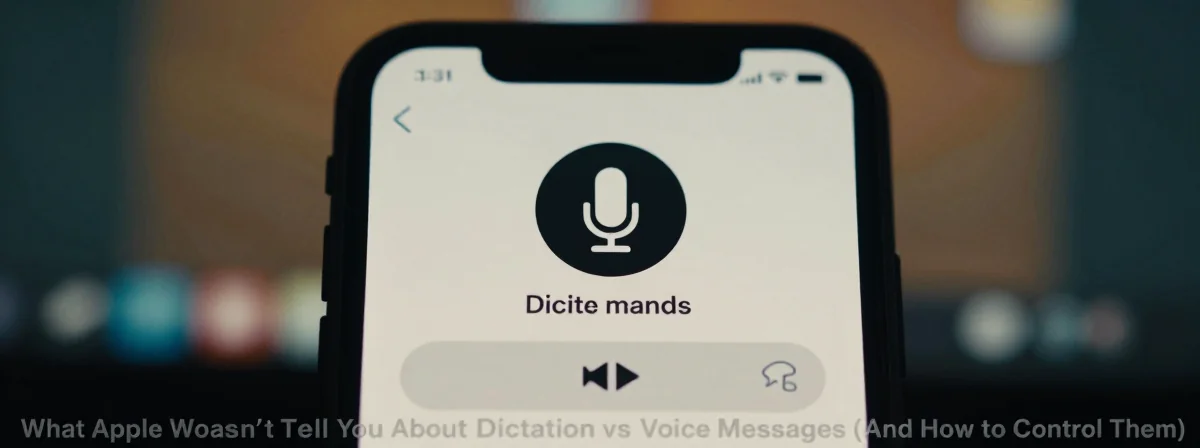
You’re sitting at your desk, trying to quickly respond to a text message. You tap the microphone icon thinking you’ll just dictate a quick reply, but suddenly you hear that familiar recording sound—and realize you’ve just sent a voice message instead. It happens again tomorrow, and the day after. What’s going on?
That frustrating experience is more common than you think. There’s a hidden setting in your iPhone that can turn your intended text messages into voice recordings without you even realizing it. Understanding the difference between dictation and voice messages is crucial for controlling how you communicate.
Most iPhone users never notice this subtle but significant distinction until it’s too late. The truth is, your device has multiple ways to handle your verbal communications, and they’re not always clearly labeled or explained.
The Microphone That Does Two Different Things
Look closely at your keyboard when you’re composing a message. You’ll see a microphone icon, usually to the left of the space bar. This isn’t just one function—it’s a gateway to two completely different communication methods.
When you tap that microphone, you might expect it to always do the same thing. But depending on your settings and how you interact with it, it can either:
- Convert your speech to text (dictation)
- Record your voice as an audio message
The difference might seem subtle, but the consequences are significant. One creates editable text that can be reviewed before sending. The other creates an audio file that might be sent immediately or with a delay, depending on your settings.
Imagine you’re in a quiet meeting and you accidentally record your voice instead of typing. Or worse, you’re sending sensitive information that now exists as an uneditable audio file. These aren’t hypothetical scenarios—they’re common frustrations that most iPhone users eventually encounter.
The “Raise to Listen” Trap That Few People Know About
Deep within your iPhone’s settings lies a feature called “Raise to Listen.” This seemingly innocent setting can cause major headaches if you’re not aware of it.
What does it do? Simple: if enabled, simply holding your phone up to your face can trigger a voice recording. The proximity sensor detects the phone’s position, and if your hands accidentally cover the top of the device, it might think you’re trying to record a message.
Most people discover this feature by accident—when they find voice messages in their sent items that they don’t remember recording. It’s an easy mistake to make, especially if you have large hands or tend to hold your phone in certain ways.
The irony is that this feature is designed to make communication easier, but for many users, it does exactly the opposite. It creates an invisible barrier between intention and action, where what you meant to do (type a message) is replaced by something unexpected (recording your voice).
How to Tell Dictation From Voice Recording Before It’s Too Late
The visual difference is subtle but important. When you tap the microphone icon for dictation, you’ll see a small upward-pointing arrow appear above the microphone icon. This indicates that your words are being converted to text.
For voice recording, you’ll typically see a waveform animation appear where the keyboard would normally be. This visual cue means your device is capturing audio rather than transcribing speech.
Pay attention to these subtle differences. They’re your first line of defense against accidentally sending voice messages when you intended to type. The moment you notice the waveform instead of the text cursor, you can cancel the recording before it’s too late.
It’s worth practicing this distinction a few times. Open a message, tap the microphone, and observe what appears. Then try again and notice the difference. This small habit can save you from embarrassing or problematic voice messages down the line.
The Complete Guide to Controlling Your iPhone’s Communication Settings
If you’re tired of the guesswork and want complete control over how your iPhone handles your communications, follow these steps:
Disable “Raise to Listen”: Go to Settings > Messages > Raise to Listen and toggle it off. This prevents accidental recordings when you hold your phone to your face.
Manage Dictation Settings: Navigate to Settings > General > Keyboard > Dictation and review your options. You can enable or disable dictation entirely here.
Understand the Microphone Icon: Remember that the same microphone serves two purposes. Be intentional about when and how you tap it.
Use the Cleanup Function: If you do accidentally record a voice message, most messaging apps provide a way to cancel or delete it before it’s sent or received.
Check for Updates: Apple frequently updates its iOS to improve user experience. Keeping your system updated ensures you have the latest controls and features.
These steps might seem small, but together they create a comprehensive approach to managing how your iPhone communicates your thoughts. It’s about reclaiming control in a world where technology often assumes it knows better than we do.
Why This Matters More Than You Think
At first glance, this might seem like a minor technical quirk—not worth the mental energy. But consider how often you communicate through your phone. Now imagine a significant percentage of those communications being handled differently than you intended.
The implications go beyond mere inconvenience. Voice messages can’t be edited, searched as easily, or skimmed quickly. They create different expectations for response times and can sometimes convey unintended emotions through tone.
In our increasingly digital world, having precise control over how we communicate is more important than ever. These small settings aren’t just technical details—they’re tools that shape our interactions, our relationships, and how we present ourselves to the world.
Take a moment today to check your settings. Adjust them to match your communication style. It’s a small investment of time that can prevent countless moments of frustration down the road.
Remember, technology should serve us, not the other way around. By understanding these subtle distinctions and controls, you’re taking back that power—one setting at a time.