
Ever stared at your iPhone’s screen, wondering why it looks tinted even when you’ve switched modes? You’re not alone. Many of us have spent frustrating minutes toggling between “Tinted” and “Clear” modes, only to find the tint stubbornly refusing to budge. The truth is, there’s often a hidden culprit—something you didn’t even know was affecting your display.
That slight blue or yellow hue can make reading text harder, strain your eyes, and just plain annoy you. But before you give up and accept a permanently tinted screen, there’s a simple fix. It’s not always obvious, but once you know where to look, it’s a game-changer.
Take it from someone who spent way too long blaming their wallpaper—only to realize the real issue was lurking in a setting I never thought to check.
Why Does Your iPhone’s Display Still Look Tinted Even on “Clear” Mode?
You switch to “Clear” mode, expecting a crisp, untinted display, but instead, you’re greeted with the same annoying hue. It’s like the setting isn’t working at all. The first thing to understand is that the “Clear” mode isn’t the only player here. Your iPhone’s display is influenced by multiple settings, and one tiny toggle can throw everything off.
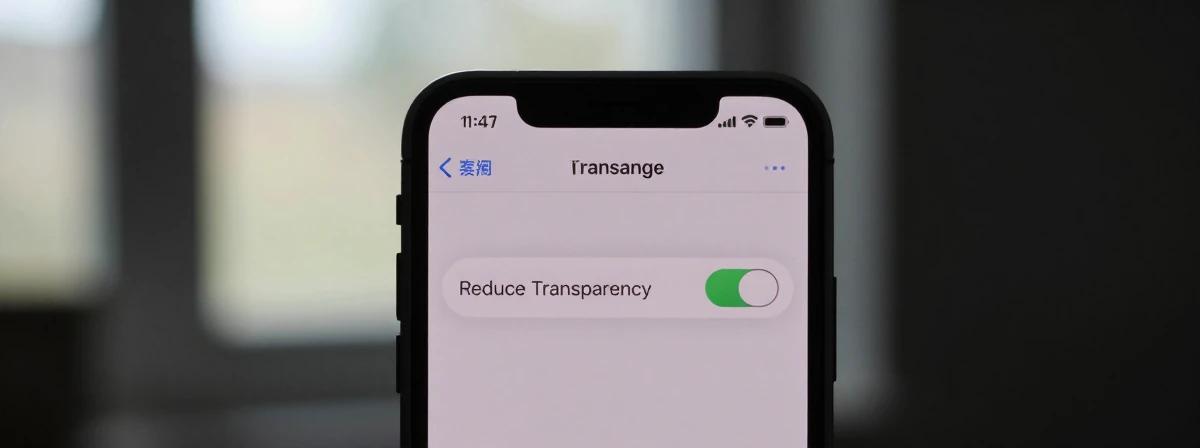
The most common culprit? “Reduce Transparency.” This setting is designed to cut down on the blur effects in iOS, but it also affects how colors appear on your screen. If it’s turned on, even a “Clear” display can look tinted because the system is altering how light passes through the screen. It’s a subtle effect, but it’s enough to drive you crazy.
Another sneaky issue is older iOS versions or specific iPhone models. Some older iPhones have different visual rendering, meaning what works on a newer model might not on yours. It’s not a bug—it’s just how the hardware and software interact. But knowing this can save you hours of frustration.
The Hidden Setting That’s Messing With Your Display
Let’s talk about “Reduce Transparency” in more detail. This setting is usually found in Accessibility > Display & Text Size. When it’s on, your iPhone sharpens text and icons by reducing the blur effect, but it also changes how colors appear. On a colorful background, this can make the screen look tinted—even if you’re in “Clear” mode.
The fix? Toggle it off and see if that clears things up. If your eyes feel strained without it, you can always find a middle ground. Some users find that turning it off only when using “Clear” mode solves the issue without sacrificing readability.
But wait—there’s more. Did you know that certain wallpapers can make the tint more noticeable? A highly saturated background will amplify any tinting effect, making it seem worse than it is. Try switching to a neutral gray or white background to see if the tint disappears. If it does, your wallpaper might be the real villain.
Is It a Bug—or Just How Your iPhone Works?
Sometimes, what looks like a bug is just how your specific iPhone model handles display settings. Older iPhones, for instance, might have different rendering engines that make “Tinted” and “Clear” modes behave differently. It’s not a flaw—it’s just hardware limitations.
But if you’re on a newer iPhone and still seeing issues, it might be worth checking for software updates. Apple often patches display quirks in new iOS releases. A quick update could be all you need to restore your screen to its intended state.
Another thing to consider: third-party apps. Some apps override system settings, including display modes. If you notice the tint only in certain apps, that’s likely the culprit. The solution? Check the app’s settings or look for an update.
How to Fix a Tinted Display for Good
Ready to finally solve this mystery? Here’s a step-by-step approach:
- Check “Reduce Transparency”: Go to Settings > Accessibility > Display & Text Size and toggle it off. Test your display.
- Try a Neutral Wallpaper: Switch to a plain white or gray background to see if the tint disappears.
- Update iOS: Ensure your iPhone is running the latest software.
- Reset Display Settings: In Settings > General > Transfer or Reset iPhone, tap “Reset” > “Reset All Settings.” This won’t delete your data but will restore default settings.
- Contact Apple Support: If nothing works, it might be a hardware issue.
Most of the time, it’s one of the first three steps that does the trick. The key is to methodically eliminate variables until you find the cause.
The Single Idea That Makes Everything Click
Here’s the truth: your iPhone’s display isn’t out to annoy you. It’s just a complex system with multiple settings that interact in ways you might not expect. The moment you realize that a tiny toggle like “Reduce Transparency” can affect your screen’s appearance, you gain control.
Instead of accepting a tinted display as a permanent condition, treat it as a puzzle to solve. Each setting you check, each wallpaper you try, brings you closer to the answer. And when you finally fix it? That crisp, untinted screen will feel like a small victory—one that makes all the frustration worthwhile.
Now go ahead—check those settings. Your eyes will thank you.