
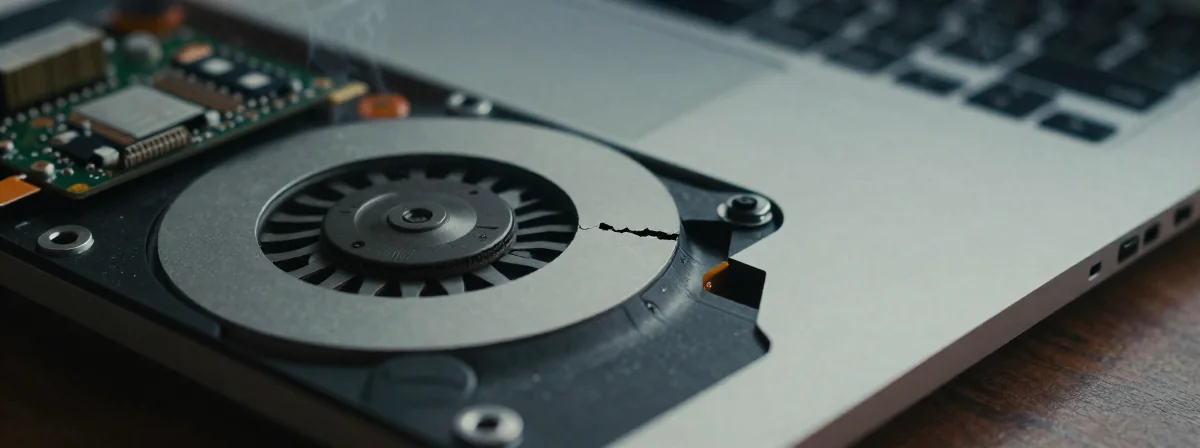
Ever been mid-game or deep in work, only to hear that sickening click as your laptop fan gives up the ghost? Yeah, that’s peak drama, and trust me, it’s not just annoying—it’s a full-blown crisis. Your laptop’s cooling system isn’t just there for kicks; it’s the whole reason your machine doesn’t melt into a puddle of expensive plastic. But here’s the tea: running with one fan down? That’s like driving with bald tires—yeah, it might work, but you’re playing with fire.
So, let’s spill the real tea on what happens when you ignore that busted fan and how to fix it before your laptop files a complaint against you.
Why Running With One Fan Is a Big No-No (And Not Just Because It’s Loud)
First things first: that extra fan isn’t just there for aesthetic symmetry. Some laptops have twin fans pushing air through the same heatsink, meaning if one bites the dust, the other’s gonna work overtime—like, 100% speed overtime. And guess what? That fan’s gonna scream louder than a Kardashian at a family reunion. But the real drama? Your CPU and GPU are gonna start sweating like it’s summer in Florida, leading to performance throttling. Suddenly, your smooth gaming rig feels like a dial-up modem from 1998.
Worse? Some laptops are that extra and won’t even boot if the CPU fan isn’t detected. Yeah, you heard that right—locked out of your own machine because you ignored a busted fan. The moral? Don’t do it. Just don’t.
The Silent Mode Myth: Is It Safe to Risk It?
Okay, so some laptops have a “silent mode” that slows things down enough to run fanless. Sounds like a godsend, right? Not so fast. Even in silent mode, your temps are still creeping up, and you’re basically gambling with your hardware’s lifespan. If you really wanna risk it, you’d need software to monitor temps like a hawk. But let’s be real—how many of us are actually gonna stare at a temp graph while trying to work? Exactly.
And before you ask: no, disabling Turbo Boost or undervolting isn’t a magic fix. It’s like putting a bandaid on a bullet wound. Sure, it might buy you a little time, but the underlying problem’s still there, and it’s gonna bite back.
The DIY Fix: Can You Solder That Fan Back On Yourself?
So, the fan’s unplugged or partially unsoldered. Can you fix it yourself? Maybe. If you’ve got a steady hand and a heat gun lying around, you could try resoldering it. But here’s the tea: those tiny capacitors and power rails near the fan? Easy to accidentally unsolder them too. And trust me, that’s when the real drama starts.
If you’re not a soldering pro, your best bet is to hit up a local repair shop. A good phone repair joint can usually handle it for under $30—way cheaper than buying a whole new laptop. And hey, at least you’ll get the satisfaction of knowing you didn’t fry your machine further.
The Long-Term Damage: What Happens If You Ignore It?
Running with one fan down isn’t just about immediate performance hits. Over time, that extra heat stress can wreck your SSD, GPU, and CPU. We’re talking corrupted files, random crashes, and eventually, a laptop that’s more brick than machine. One user here literally fried their SSD because they ignored a busted fan—talk about a nightmare.
And don’t think your laptop won’t fight back. Some models will throttle so hard that you’re basically paying premium prices for a glorified paperweight. The other fan might even burn out from overwork, and then? You’re truly screwed.
The Bottom Line: Don’t Be That Person Who Ignores the Fan
Look, laptops are delicate beasts. Their cooling systems are engineered to keep things balanced, and messing with that balance is like poking a sleeping bear. If your fan’s busted, don’t just shrug and keep going. Get it fixed—whether that’s DIY or professional. Because the cost of ignoring it? Way higher than a quick repair.
At the end of the day, that extra fan wasn’t just there for show. It was your machine’s lifeline, and now? It’s up to you to save it. Don’t let your laptop become the cautionary tale no one wants to hear. Fix it. Now.