
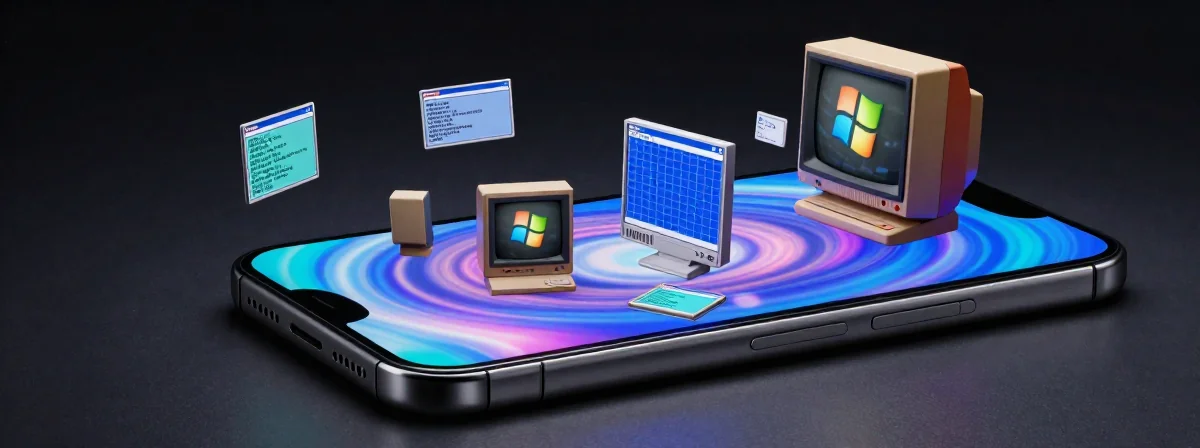
You’ve probably scrolled through endless iPhone home screens, each one trying too hard to be minimalist or too cluttered with widgets. But what if I told you there’s a way to make your iPhone feel like a blast from the past—without the headache of jailbreaking?
For years, the idea of truly customizing an iPhone seemed locked behind Apple’s strict rules. But buried in the depths of app shortcuts and hidden settings lies a secret: you can make your iPhone look and feel like classic operating systems, from Windows 95 to DOS Shell. It’s not magic, but it feels close.
I remember the first time I saw it done. A friend had turned their iPhone into a retro DOS interface, complete with that familiar blue screen and command prompts. I assumed it was some elaborate prank—until I saw the shortcuts and wallpapers they’d used. It was real, and it was simpler than I ever imagined.
How Do You Even Start with This?
The first question that probably pops into your head is: “How do you install this? Through an app?” And yes, that’s exactly right. But before you dismiss it as too technical, let me break it down.
The process relies on Apple’s Shortcuts app and a few cleverly designed themes. You don’t need to be a tech wizard—just someone willing to follow a few steps. For example, to make your iPhone look like Windows 95, you’d:
- Download a specific wallpaper set (yes, the iconic blue and yellow grid).
- Use a pre-made shortcut that arranges your apps in a grid-like layout.
- Maybe even add a “Start” button widget that opens your most-used apps.
It sounds tedious, but someone’s already done the heavy lifting. You just need to find the right guide or shortcut package online.
Why You’ve Never Heard of This Before
Apple’s ecosystem is notoriously closed off. For years, the only way to truly customize an iPhone was through jailbreaking—a risky process that often voided warranties and left devices vulnerable. But when Apple introduced Shortcuts and more flexible widget options, the door cracked open.
The problem? Most people don’t know about it. Even in tech communities, this kind of customization is still niche. That’s why you might have assumed it wasn’t possible—or that you’d need to be a coding genius to pull it off.
But here’s the truth: The most impressive iPhone customizations are often the simplest. It’s not about reinventing the wheel; it’s about using the tools Apple gives you in unexpected ways.
The DOS Shell Dream (And Why It’s Surprisingly Easy)
One of the most nostalgic themes people ask about is the DOS Shell. That black screen with green text, the clunky commands, the feeling of typing “DIR” just to see what’s in a folder—it’s the epitome of retro computing.
And yes, you can recreate it on your iPhone. The key is in the details:
- A black wallpaper with green text widgets.
- Shortcuts that mimic DOS commands (like “CD” to open folders or “CLS” to clear the screen).
- Maybe even a sound effect that plays when you “boot up.”
It’s less about functionality and more about the aesthetic. But that’s the beauty of it—you’re not just using your phone; you’re curating an experience.
Beyond the Theme: Why This Matters
At this point, you might be thinking, “Okay, but why bother?” After all, an iPhone is supposed to be sleek and modern. Why go through the trouble of making it look like something from the 90s?
The answer lies in something deeper than just looks. Customization is about making your device feel like yours. It’s about breaking free from the cookie-cutter approach and injecting a bit of personality.
Think about it: Your phone is with you all day. If it looks and feels like every other iPhone out there, it starts to blend into the background. But when you give it a unique twist—whether it’s a retro OS theme or something else entirely—it becomes more than just a tool. It becomes an extension of you.
The Final Piece: Where to Find These Themes
The last hurdle is knowing where to start. You could spend hours searching for the right shortcuts or wallpapers, but the truth is, the best resources are often hidden in plain sight.
Look for curated lists on tech blogs or dedicated communities (though not the kind you’d find on forums—more on that later). Sometimes, the most polished themes come from independent developers who share their work for free or a small fee.
And remember: Even if something seems complex, break it down. One person’s “impossible” customization is just a series of small steps to someone else.
The Hidden Truth About iPhone Customization
Here’s the thing: Apple doesn’t want you to customize your iPhone. They want you to use their ecosystem exactly as they designed it. But that doesn’t mean it’s impossible.
The most rewarding customizations are the ones you discover yourself—the ones that feel like a secret handshake with your device. Whether it’s making your iPhone look like Windows 95 or bringing back the DOS Shell, the goal isn’t just to change how it looks. It’s to change how you feel when you use it.
And that, more than anything, is worth the effort.